
What are you looking for?
Replacing the Next Rehearsal Page
With each new semester comes a need to start off with a fresh Next Rehearsal page.
Here are the steps I follow to accomplish this:
Create the New Page
1) Go into the website dashboard, go to Pages, and find the previous semester’s Next Rehearsal page (search for ‘next rehearsal’):
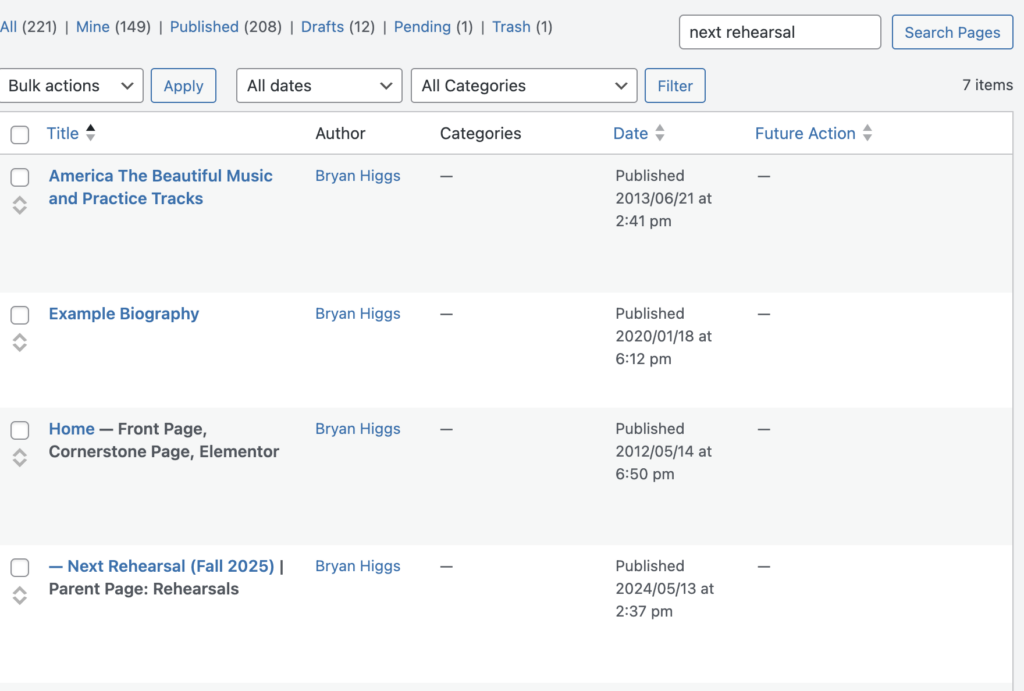
In this example, we’re looking for Next Rehearsal (Fall 2025).
2) Bring up the options for that Page:

and click on “Duplicate This”:
3) This creates a new Draft page:

Then click on Quick Edit, and rename the page to the new semester:
4) In this example, Fall 2026:
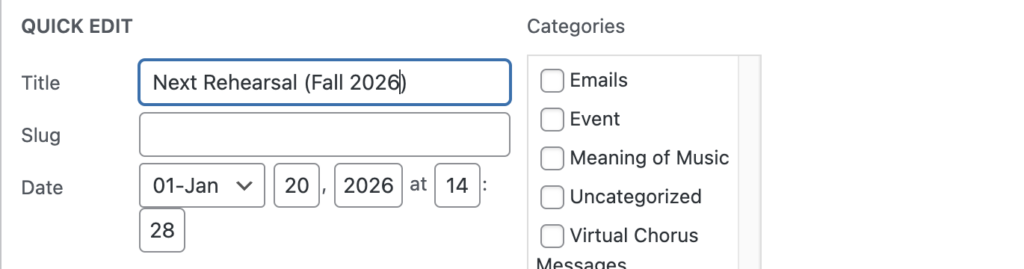
Then, Update the page. (Note that the page is still a Draft.)